Source policy
Your source policy decides which payments PowaAgent will sign for your agent. Open Source policy in the portal to change it. Changes apply to your agent's next paid call.
How each payment is checked
Before signing a payment, PowaAgent runs these checks in order. The first one that fails stops the payment.
- Deny list. If the seller matches an entry, the payment is refused.
- Allow list, if it's on. If the seller doesn't match an entry, the payment is held and the seller is added to Pending approvals.
- Ecosystem. The seller's tier must be allowed.
- Per-call cap. The payment can't be larger than this amount.
- 24-hour cap. Your spend over the last 24 hours, including this payment, can't go over this amount.
- 30-day cap. Your spend over the last 30 days, including this payment, can't go over this amount.
Your agent wants to pay a seller
- On your deny list?If yes Refused
- Allow list on, and the seller doesn't match an entry?Skipped when the allow list is offIf yes Held. Seller added to Pending approvals
- Seller's tier allowed?If no Refused
- Within per-call cap?If no Refused
- Within 24-hour cap?If no Refused
- Within 30-day cap?If no Refused
PowaAgent signs the payment
The 24-hour and 30-day caps are rolling windows, not calendar days or months.
Spend caps
Choose Edit on the Spend Caps card, set the amounts in USDC, then choose Save.
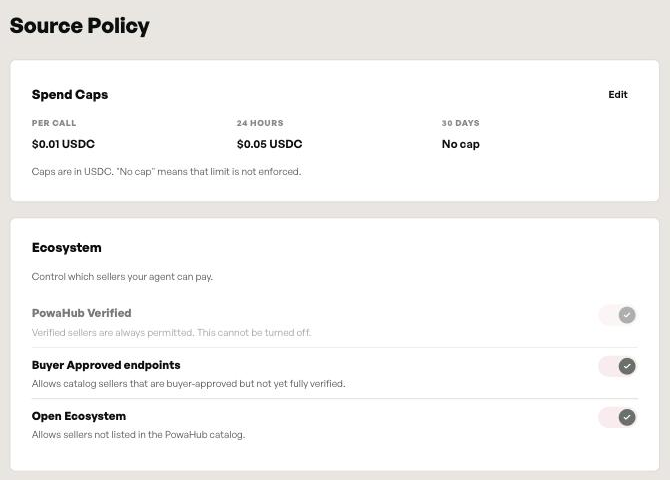
| Cap | If you leave it blank |
|---|---|
| Per call (USDC) | The platform default of $0.10 per call applies |
| 24-hour (USDC) | No 24-hour cap |
| 30-day (USDC) | No 30-day cap |
We recommend setting a 24-hour cap, so a runaway agent or a leaked API key can only spend a limited amount.
Ecosystem
These switches control which kinds of seller your agent can pay. The catalog holds every endpoint, in three tiers: Premium, Standard and Open Ecosystem. You can browse it on the portal's Catalog page and at powaagent.ai/data.
| Switch | What it allows | New accounts |
|---|---|---|
| PowaHub Verified | Premium endpoints, which are verified. "Verified sellers are always permitted. This cannot be turned off." | Always on |
| Buyer Approved endpoints | Standard endpoints | On |
| Open Ecosystem | Open Ecosystem endpoints | On |
See Source trust tiers and Open Ecosystem.
Allow list
When the allow list is on, your agent can only pay sellers that match an entry. A call to any other seller is not paid. Instead, the seller is added to Pending approvals for you to review, and your agent is told the seller is awaiting approval.
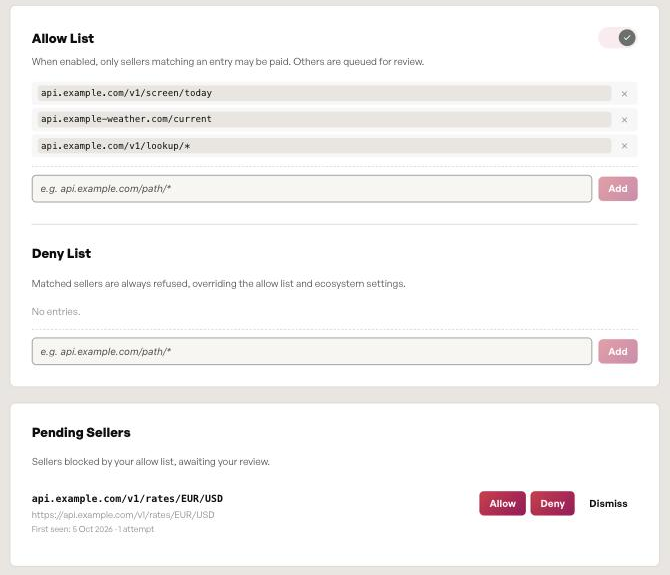
If the allow list is on and empty, no payments go through.
Deny list
Sellers that match a deny-list entry are always refused. The deny list overrides the allow list and the ecosystem switches.
How to write an entry
Allow-list and deny-list entries use the same format:
| Entry | Matches |
|---|---|
api.example.com | Every path on that host |
api.example.com/v1/search/* | Anything under /v1/search/, but not /v1/search itself |
api.example.com/*/details | /<any one segment>/details |
api.example.com/v1/quote | Only that exact path |
Rules:
http://orhttps://at the start is optional and ignored. Other schemes aren't accepted.- Host names aren't case-sensitive. Paths are case-sensitive.
*must be a whole path segment. A trailing*matches one or more segments, and a*in the middle matches exactly one.- Wildcards in the host, such as
*.example.com, aren't supported. - Query strings are not part of the match.
Pending approvals
When your allow list holds a payment, the seller appears under Pending approvals, on the Source policy page, and on your Dashboard. Each entry shows the seller, when it was first seen and how many attempts were made. You can:
- Allow: add the seller to your allow list. Your agent can pay it on its next try.
- Deny: add the seller to your deny list.
- Dismiss: remove the entry without changing either list.
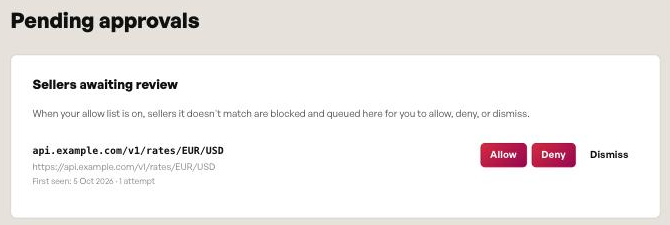
The payment that was held is not retried automatically. Ask your agent to try again after you allow the seller.
Allow lists and Premium and Standard listings
Premium and Standard listings are currently matched on the full request path, including the value your agent asked for. For example (illustrative), a lookup for GB is held as api.example.com/v1/lookup/GB. Allowing that entry allows lookups for GB only.
To allow a whole listing, add an entry that ends in a wildcard (illustrative):
api.example.com/v1/lookup/*
Errors your agent may see
When a check fails, the payment isn't signed and nothing is spent. Your agent receives a reason, such as:
- the seller is on your deny list
- the seller is awaiting your approval
- the seller's tier isn't allowed by your ecosystem settings
- a spend cap would be exceeded