Sources and transactions
Three places in the portal show what your agent has been buying: the Dashboard, Sources and Transactions.
Dashboard
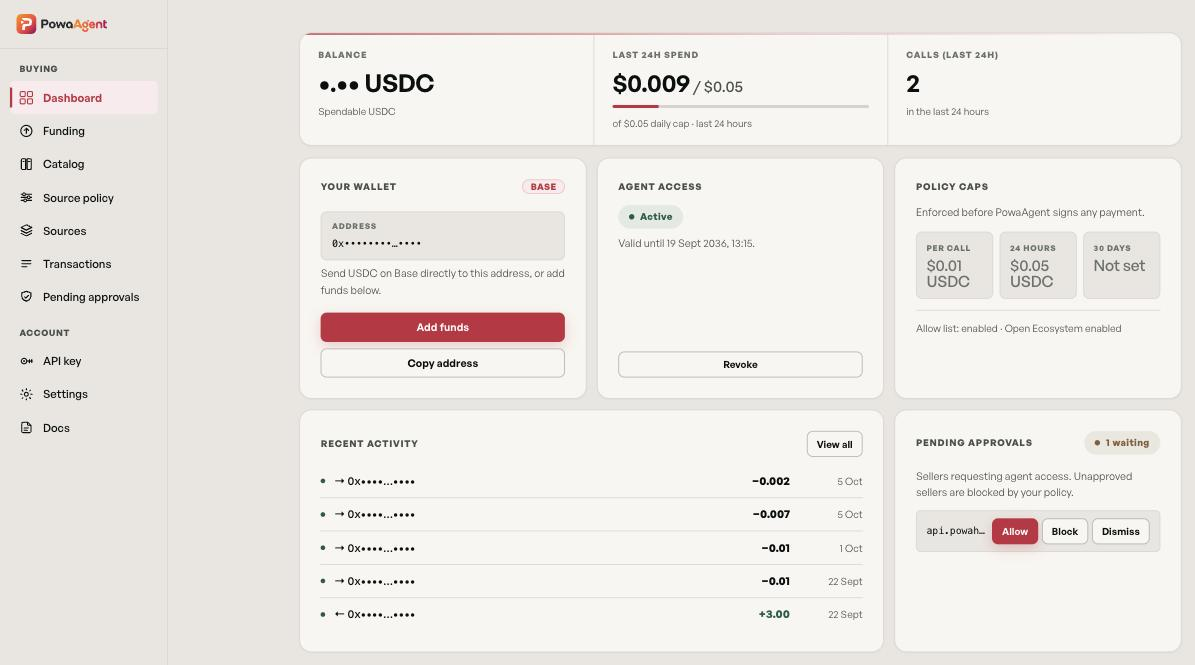
The Dashboard gives you a summary:
- Balance: your spendable USDC.
- Last 24h spend: what your agent spent in the last 24 hours, against your 24-hour cap if you've set one.
- Calls (last 24h): how many paid calls your agent made in the last 24 hours.
- Your wallet: your wallet address on Base, with Add funds and Copy address.
- Agent access: whether PowaAgent can sign payments, and until when.
- Policy caps: your current caps and whether the allow list and Open Ecosystem are on.
- Recent activity: your latest payments in and out.
- Pending approvals: sellers waiting for your review.
Sources
Sources lists the PowaHub catalog services your agent can use, with this month's activity.
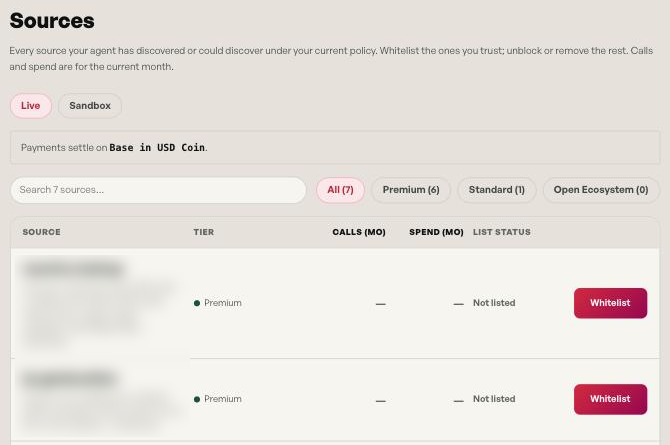
| Column | Meaning |
|---|---|
| Source | The service name, description and price per call |
| Tier | Premium, Standard or Open Ecosystem |
| Calls (mo) | Paid calls this month |
| Spend (mo) | Amount spent this month |
| List status | Whitelisted (on your allow list), Blacklisted (on your deny list) or Not listed |
You can filter by tier, search by name, and switch between Live and Sandbox activity. From each row you can add the source to your allow list (Whitelist), take it off (Remove), or take it off your deny list (Unblock).
Transactions
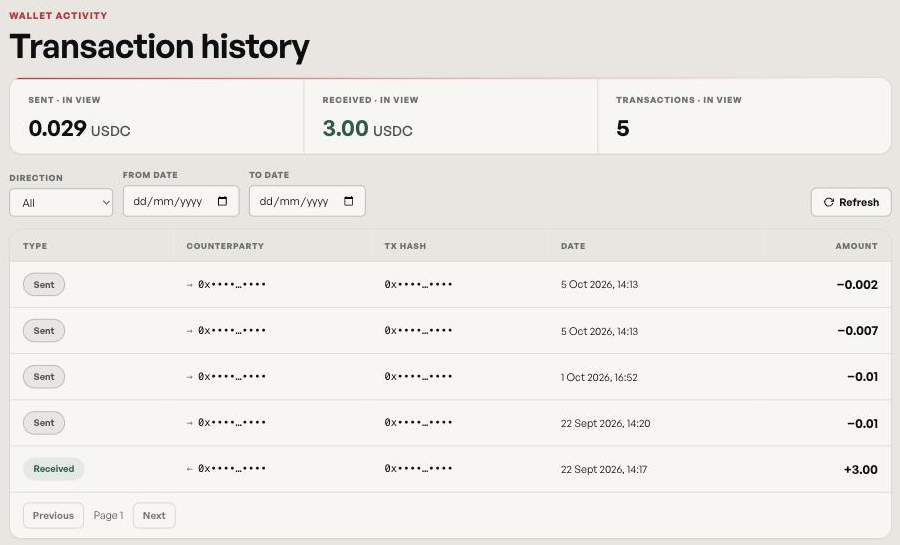
Transactions shows every USDC transfer in and out of your wallet, read from the Base network:
| Column | Meaning |
|---|---|
| Type | Sent or Received |
| Counterparty | The other wallet address |
| Tx hash | The on-chain transaction |
| Date | When it happened |
| Amount | USDC sent or received |
You can filter by direction (All, Received, Sent) and by date. Select a row to see the full details, including the block, the from and to addresses and the transaction hash, with a link to the transaction on basescan.org.
Reading a payment
Payments go to the seller's address. Your agent receives a receipt for every paid call. Its tx_hash matches the transaction hash on this page.